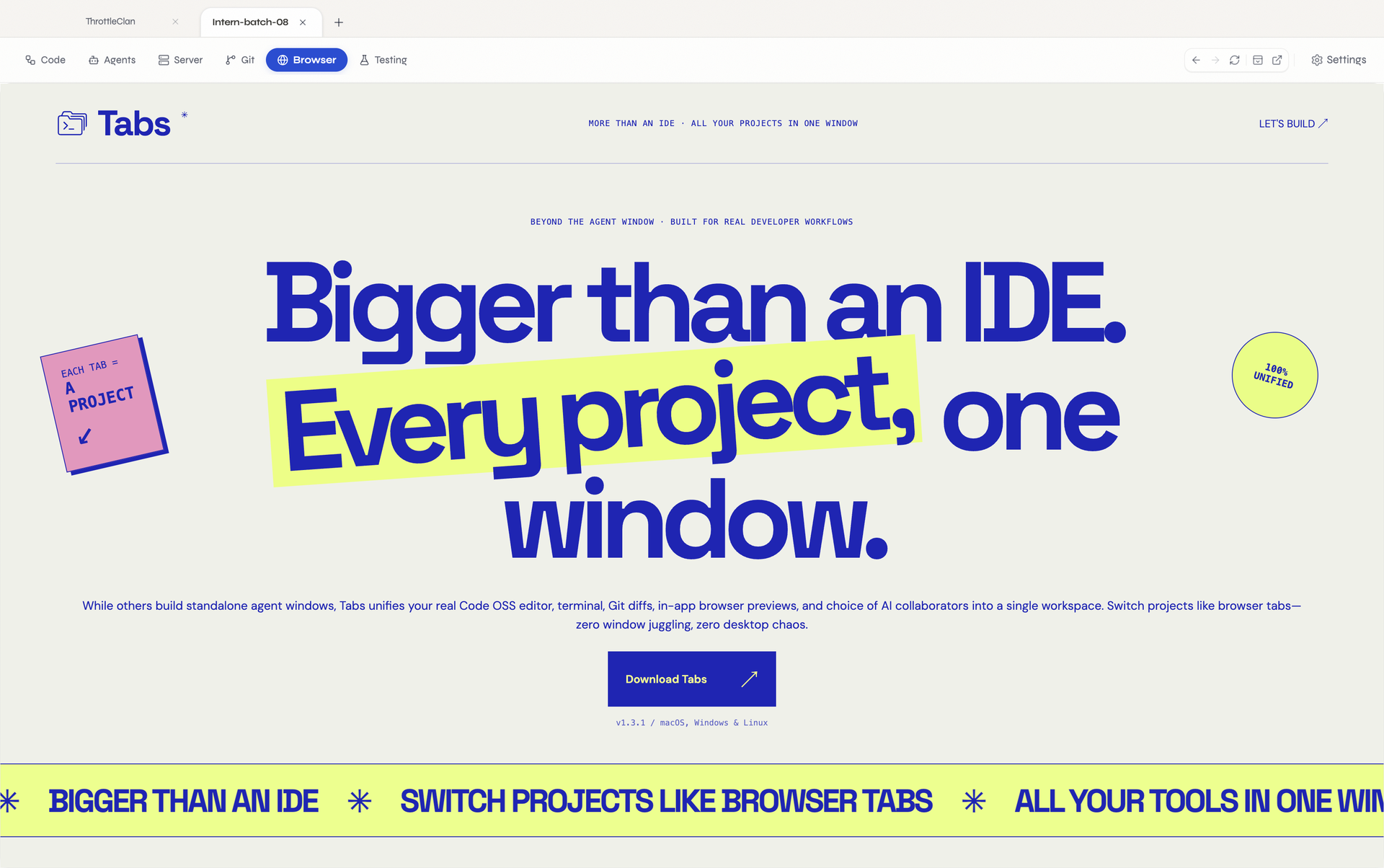
THE DESKTOP WORKSPACE FOR YOUR PROJECTS & TOOLS
Bigger than an IDE.
All your work. One window.
Work across projects in browser-style tabs. Each project brings together a Code OSS editor, AI agents, servers, Git, and a browser. Add your own web tools and CLIs to its toolbar.
Give the studio a new home.
 Let's work through it.Your conversation stays with this project.
Save the steps. Run them together.
− workspace: "somewhere else"
+ workspace: "all right here"
A little room for big ideas.
Build the next version together.
Let's work through it.Your conversation stays with this project.Save the steps. Run them together.
− workspace: "somewhere else"
+ workspace: "all right here"
Something worth making.
Try something we have not tried before.
Let's work through it.Your conversation stays with this project.Save the steps. Run them together.
− workspace: "somewhere else"
+ workspace: "all right here"
What if we just tried it?
01 / THE BIG IDEA
Keep the work.
Lose the
window shuffle.
An idea becomes a conversation, code, a running app, a review. Tabs gives that whole journey a home.
Projects across the top.
Client work, your own app, the next experiment. Move between codebases by choosing a project tab.
Tools with room to breathe.
Your editor, agent conversations, servers, Git, and browser each get their own view. Choose the tool you need from the toolbar.
A workspace that fits you.
Add your web tools and command-line tools. Save server presets. Arrange each project around how you actually work.
02 / BUILT IN, NOT BOLTED ON
Get into the work.
Stay in your element.
A Code OSS editor. Project conversations with your agents. Saved server commands, visual Git, and an integrated browser. Follow the process, one view at a time.
Your editor. Fully at home.
Edit in Code OSS with native file access and real VS Code extensions.
- Code OSS Core
- VS Code Extensions
- Native FS
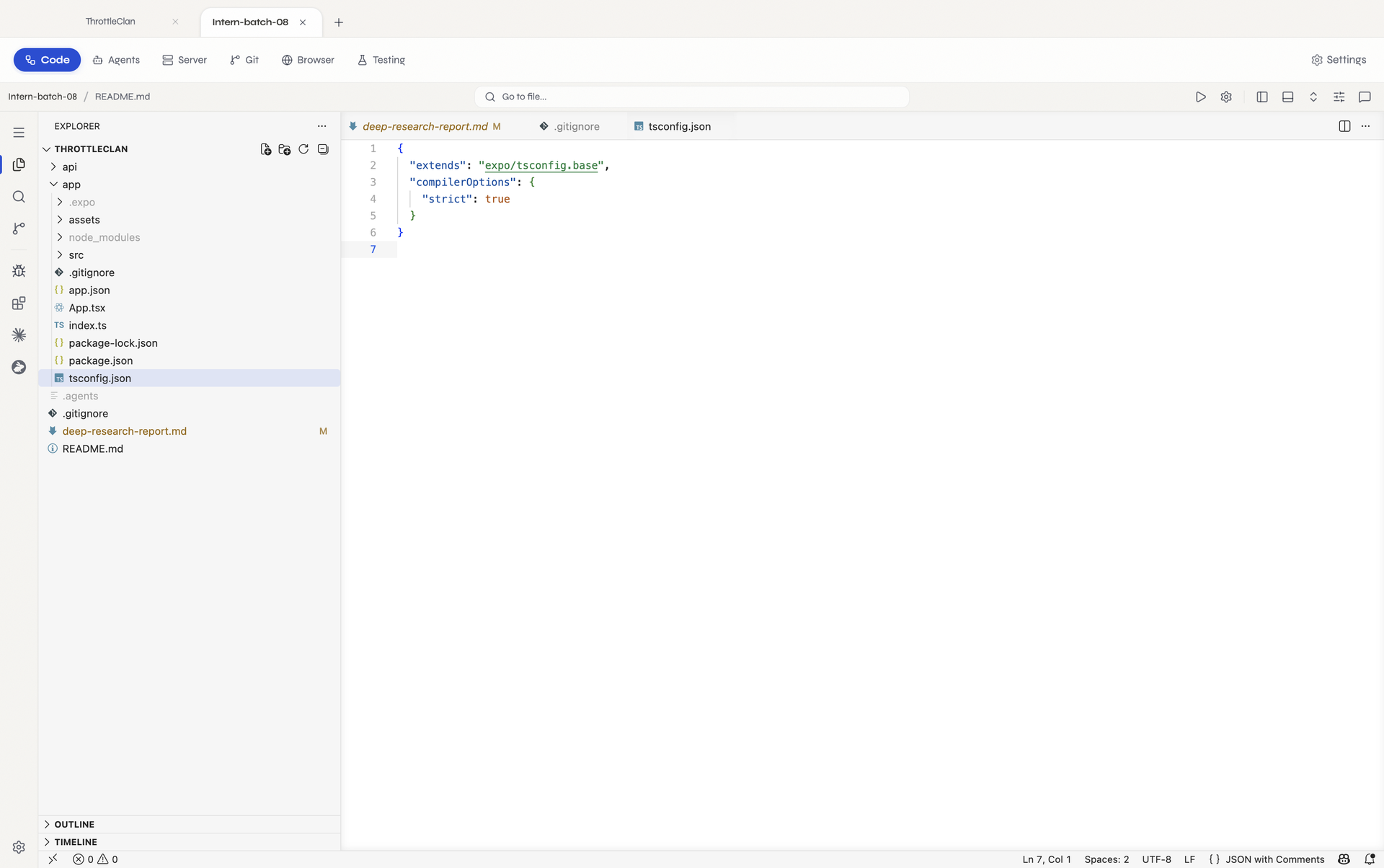
A conversation that stays with the project.
Project conversations with your agents. Start a thread, choose a model, work through changes.
- Conversations
- Provider Choice
- ACP Integrations
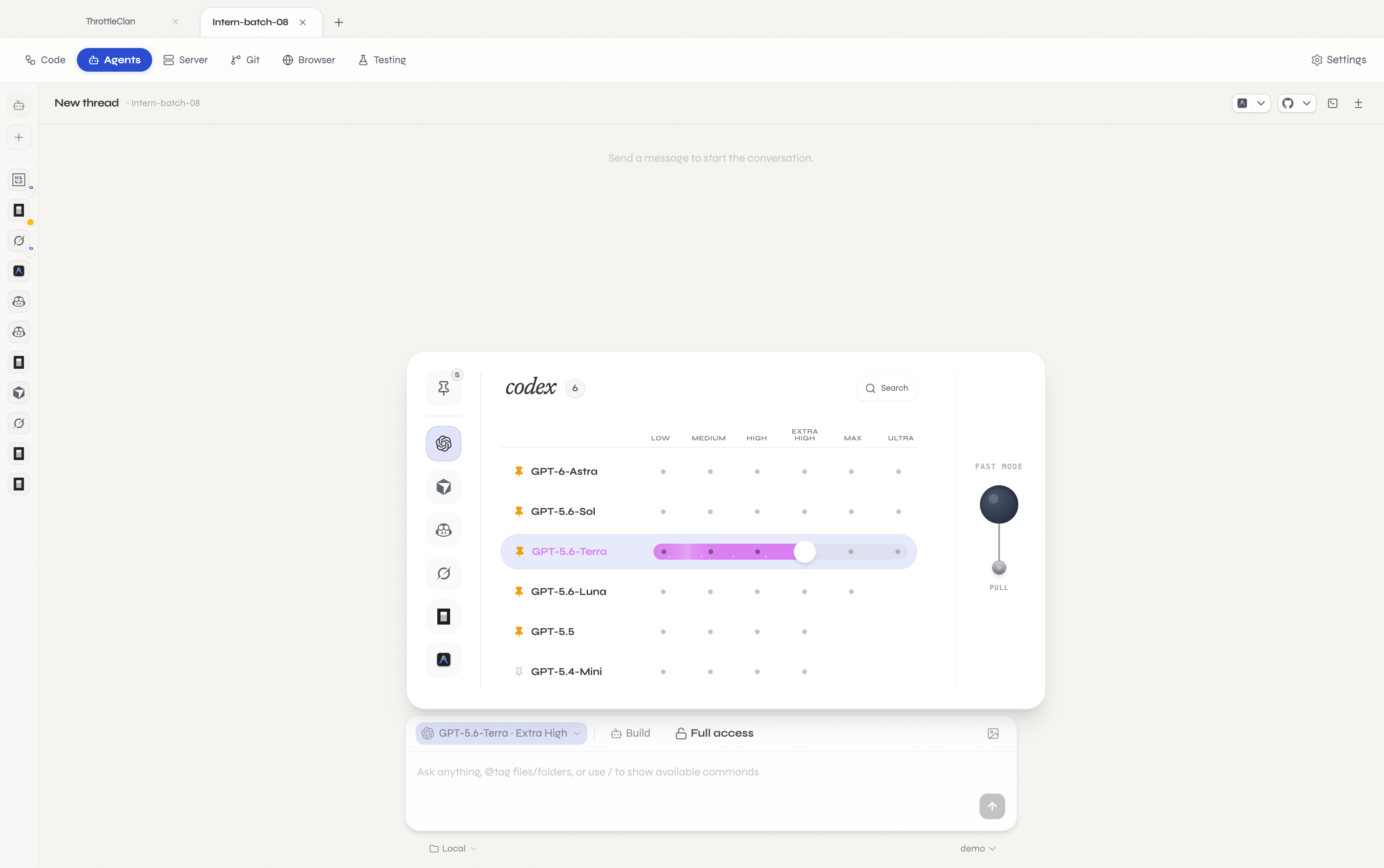
From saved commands to a running app.
Save frontend and backend commands. Run a preset, auto-open its preview in Browser.
- Command Presets
- Preview URLs
- Port Status
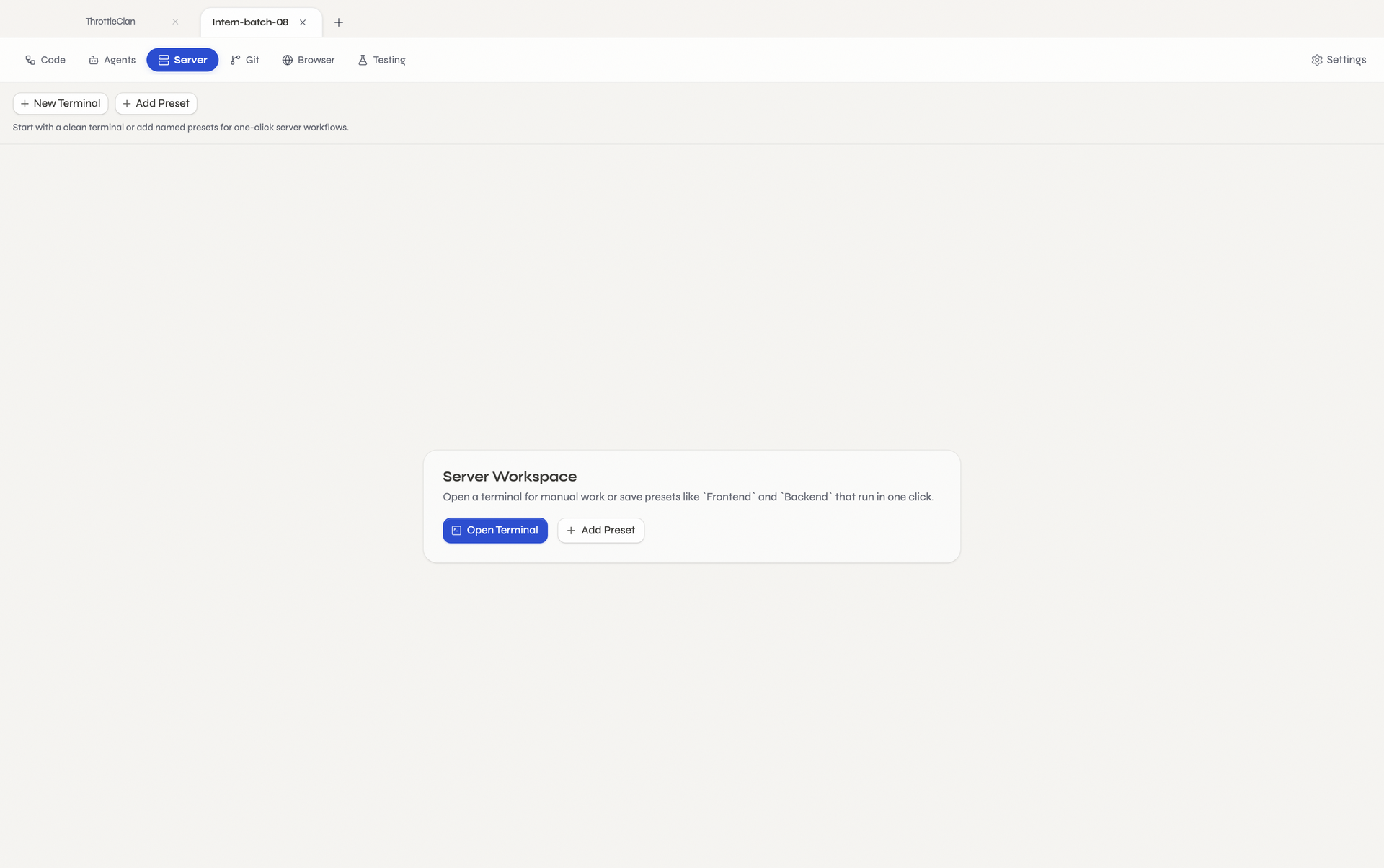
See the change before you ship it.
Review diffs, manage branches, and work with Git through a visual interface.
- Staged Diffs
- Branch & PR Sync
- Commit Graphs
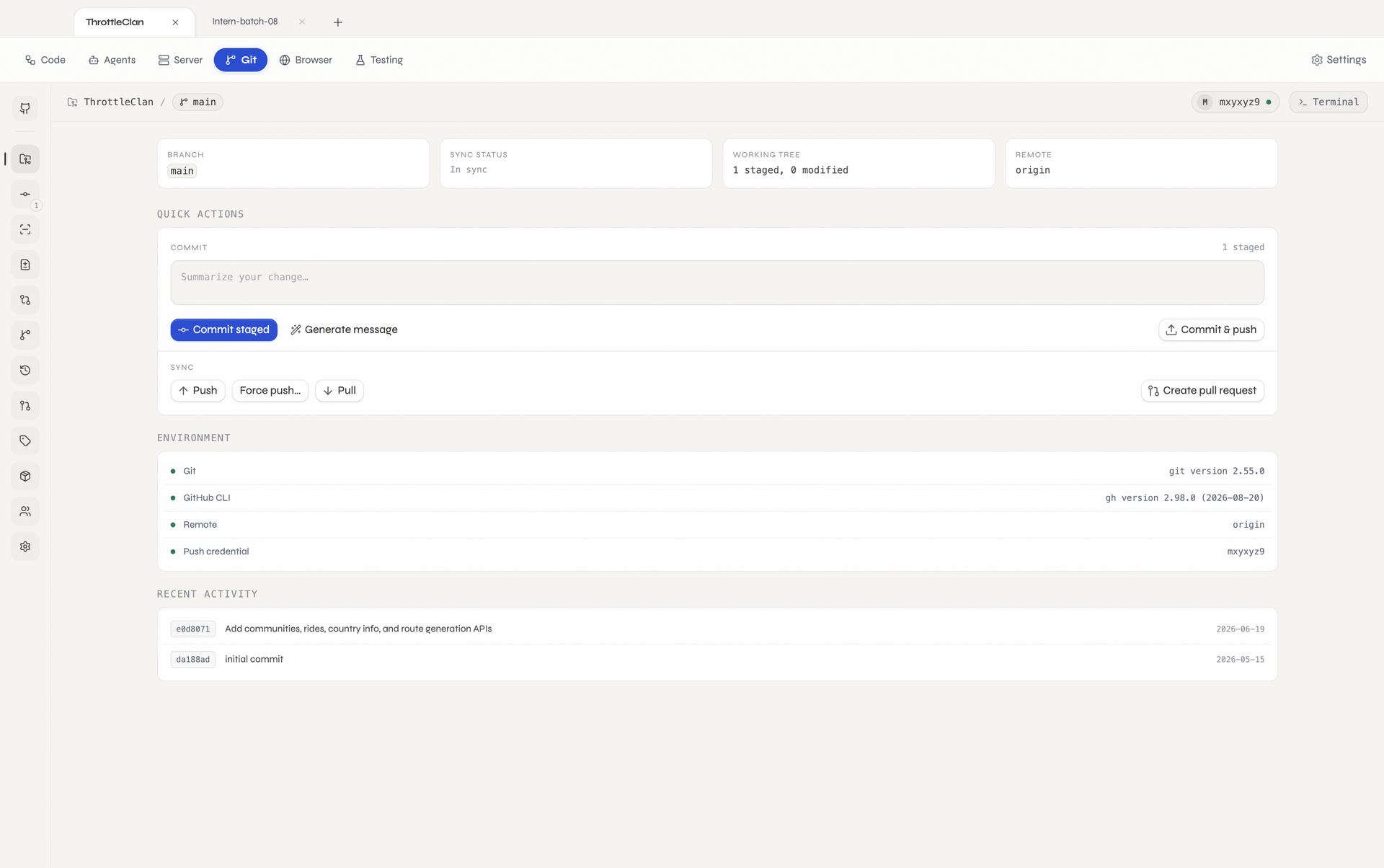
Your app, ready for a closer look.
Open any URL, preview local apps, inspect the DOM beside your code.
- Browser Tabs
- App Previews
- DevTools
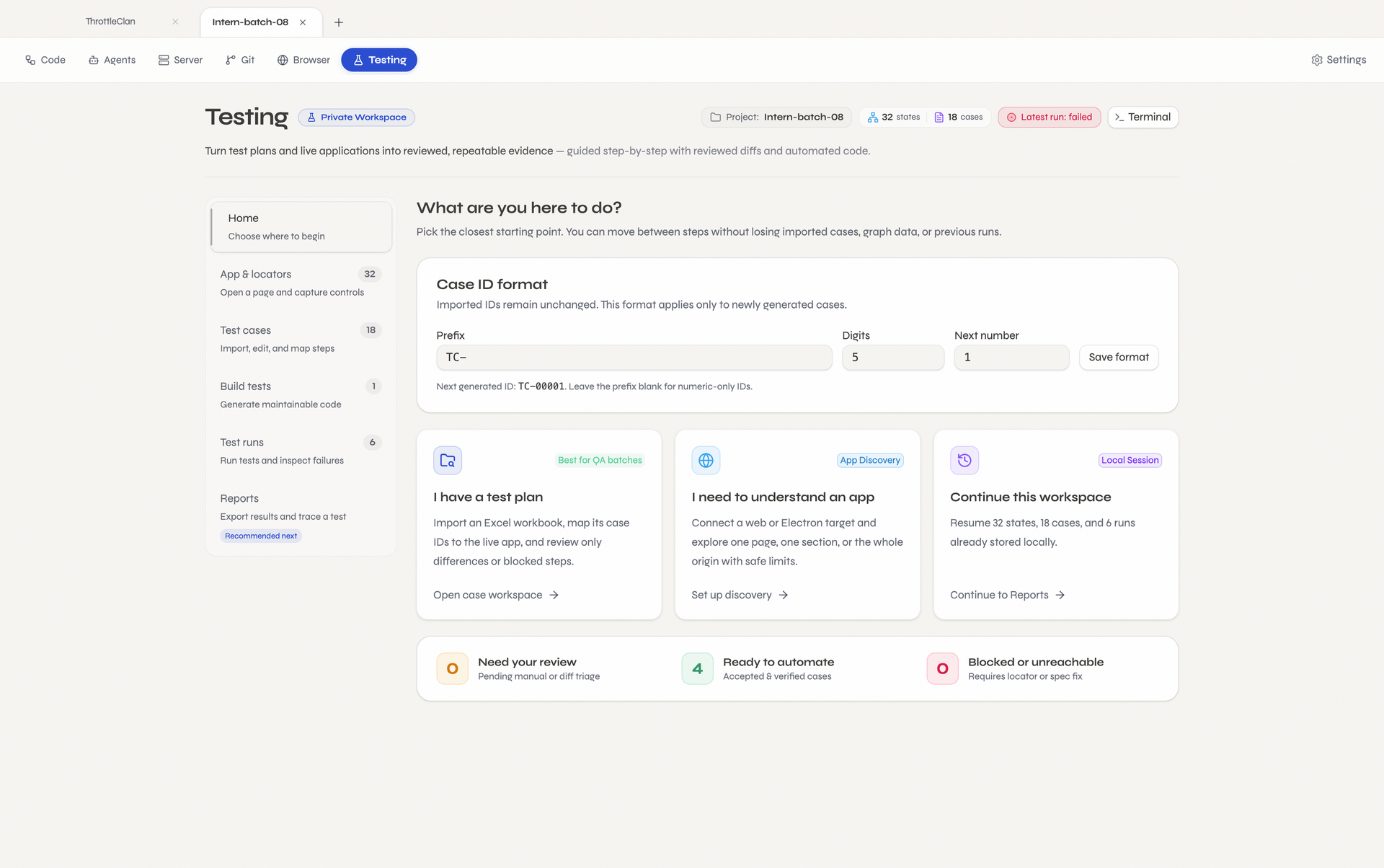
Turn a journey into a repeatable check.
Early access. Recorded journeys and repeatable checks. Enable in Workspace settings.
- Disabled by Default
- Journeys
- Screenshots
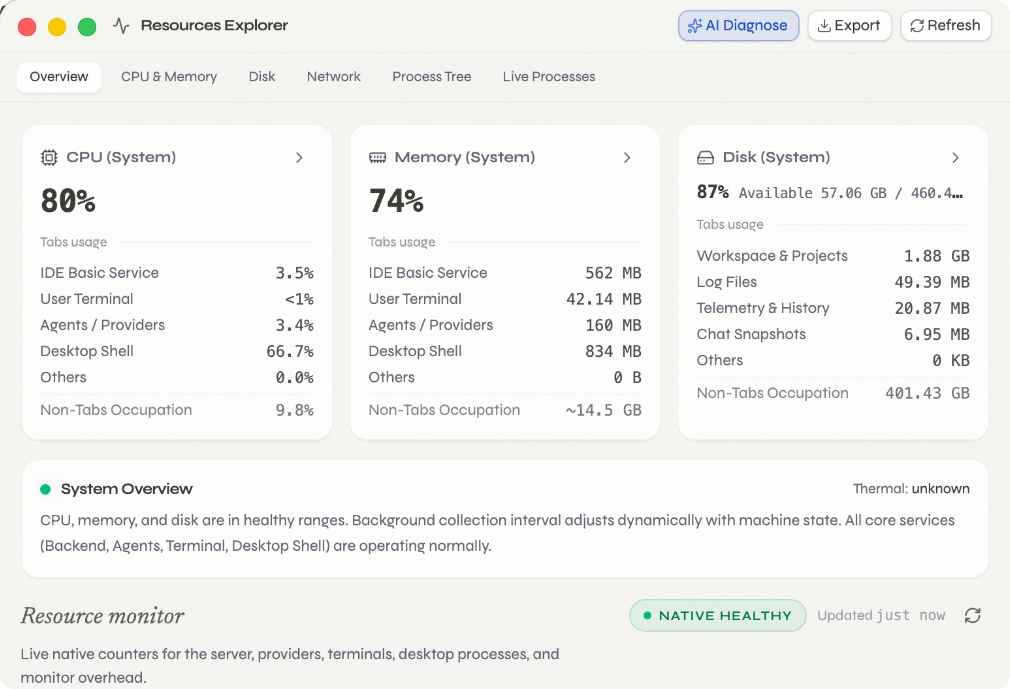
See what's using
your CPU and memory.
Check CPU, memory, disk, and network usage without leaving Tabs. Open Resource Explorer over your current tool to inspect running processes and investigate slowdowns.
EARLY ACCESS Testing is optional and disabled by default. Enable it in Workspace settings to try recorded journeys and repeatable checks.
03 / ADD YOUR OWN TOOLS
A URL. A CLI. A preset.
Make it part of Tabs.
Open Workspace settings, add a website or terminal command, and save. It gets its own place in your project’s toolbar. Save server presets to start your app and open its preview.
Paste a URL
figma.com/your-designA browser tab in your toolbar
Add a CLI command
claude · codex · your scriptA terminal tab for your tool
Save a server preset
Install → start → previewRun your app from one button
start here.↖ you
Your web, within reach.
A design file, your team’s docs, the issue board. Save a URL in Workspace settings and give it a place in this project’s toolbar.
Choose shared or isolated browser sessions. Resume the page you left open.Some services restrict embedded pages or sign-in; open them externally when needed.→ codex
What are we
making today?
› Build something worth opening.
A home for your commands.
Claude Code, Codex CLI, a database console, your own scripts. Save the command and working folder, then open a dedicated terminal from the toolbar.
Keep the command-line tools you know, one click from your code.npm install02 npm run dev03 localhost:5173 ↗Illustration only. No commands are executed.
One click. Up and running.
Save the steps that start your app. Link frontend and backend presets, set a preview URL, and switch automatically to Browser when it opens.
Commands, dependencies, and a preview URL. Your setup, ready to repeat.Different minds. Shared momentum.
Choose a supported agent for your project conversations. Native connections and Agent Client Protocol (ACP) integrations keep your collaborators close to the work.
- Claude
- Codex
- Antigravity
- Cursor
- Copilot
- Gemini
- Grok
- OpenCode
- Kilo
- Factory Droid
- OpenRouter


